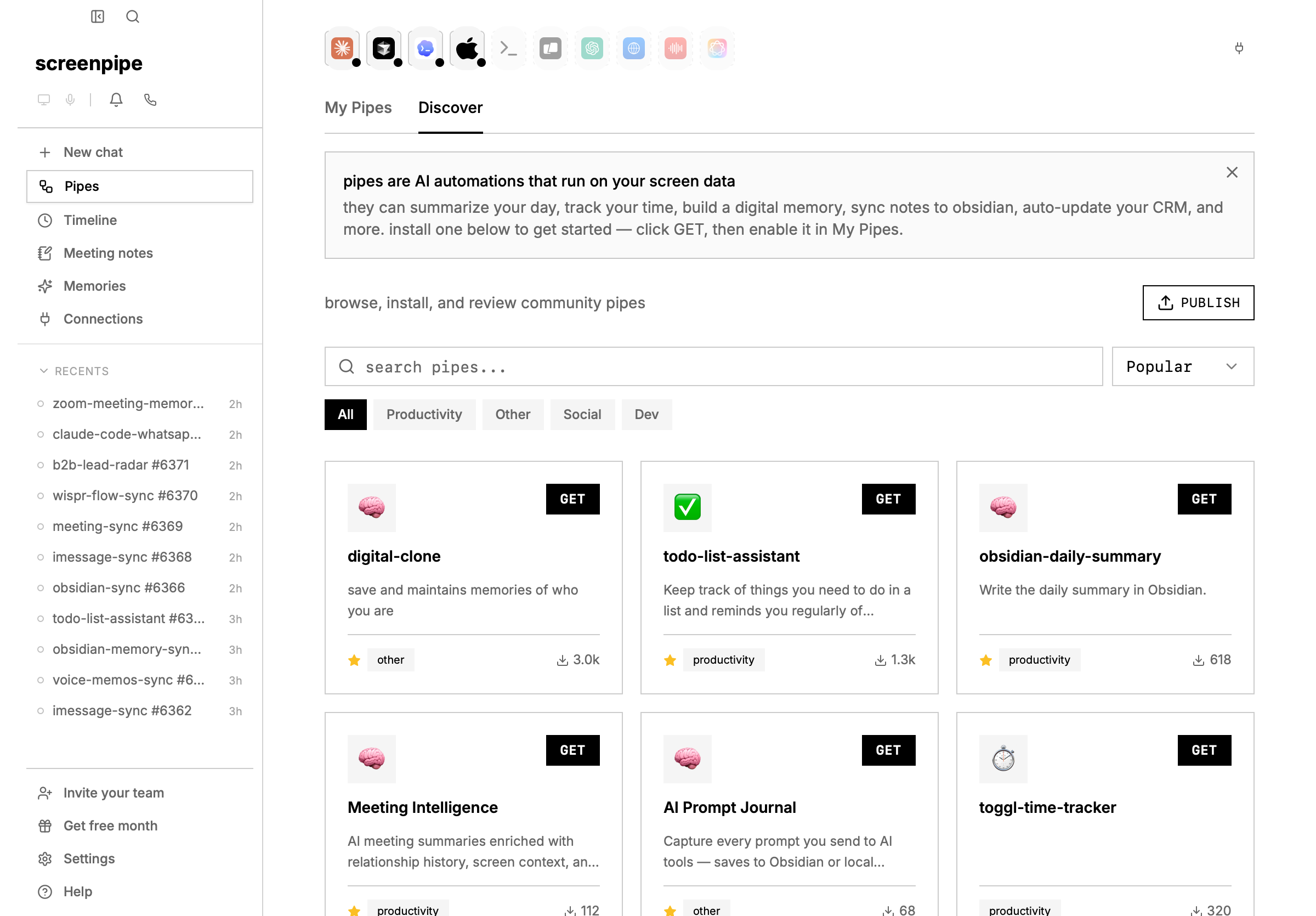
featured
Digital Clone
most popular memory pipesaves and maintains memories of who you are. builds a digital representation of your knowledge, preferences, and patterns over time.best for: personal AI memory, building context that persists across conversations.
Meeting Intelligence
botless meeting memoryAI meeting summaries enriched with relationship history, screen context, and memories — gets smarter over time. goes beyond basic transcription.best for: sales calls, recurring meetings, relationship tracking across conversations.
Obsidian Daily Summary
local notes syncwrites a daily summary of your screen activity directly into your Obsidian vault.best for: daily journaling, building a personal knowledge base, connecting screen context to your notes.
Todo List Assistant
task trackingkeeps track of things you need to do and reminds you regularly of important tasks based on your screen activity.best for: task management, staying on top of action items mentioned in meetings or messages.
AI Prompt Journal
AI workflow journalcaptures every prompt you send to AI tools (ChatGPT, Claude, Gemini, Perplexity, etc.) and saves them to a daily markdown journal.best for: building a searchable archive of your AI conversations, reviewing your thought process.
productivity
Focus Assistant
distraction detectiondetects when you’re distracted based on your active app and sends you a notification to get back on track.best for: deep work sessions, reducing context-switching, staying focused on a specific task.
Toggl Time Tracker
automatic time trackingautomatically tracks your time in Toggl based on which apps you’re using. no manual time entries needed.best for: freelancers, consultants, anyone who bills by the hour.
Notion CRM Sync
sales workflow syncauto-detects business calls and syncs them to your Notion CRM. extracts contacts, company, deal stage, and action items from conversation transcripts.best for: sales teams, founders, anyone tracking deals in Notion.
Personal CRM
relationship memoryremember everyone you meet, what you discussed, and when to follow up. builds relationship context automatically from your screen and audio data.best for: networking, sales, managing relationships across many contacts.
Research Rabbit
research assistantdeep-dives into topics based on your screen activity — finds non-obvious insights you wouldn’t Google yourself.best for: researchers, curious people, discovering connections between topics you’re exploring.
sync & integrations
iMessage Sync
local message syncsynchronizes your iMessages into the screenpipe database so they’re searchable alongside your screen data.best for: searching old messages, giving AI context about your conversations.
Voice Memos Sync
voice memo memorytranscribes and indexes iPhone Voice Memos synced via iCloud. auto-processes new recordings, transcribes via Deepgram, summarizes with AI, and stores as searchable memories.best for: people who use Voice Memos for quick thoughts, meeting notes, or brainstorming.
the Store is a live catalog and changes independently of the app release. search Discover for the current availability, version, permissions, and connections before relying on a pipe in a workflow.
troubleshooting
pipe installed from store but not showing in UI
problem: you click GET on a pipe, the install succeeds, but the pipe doesn’t appear in Pipes → My Pipes. solution:- switch back to Discover, then return to My Pipes and wait a few seconds for the list to refresh.
- check that the pipe folder exists:
- macOS/Linux:
ls ~/.screenpipe/pipes/and verify the pipe name appears - Windows:
dir %USERPROFILE%\.screenpipe\pipes\(orecho $env:USERPROFILE\.screenpipe\pipesin PowerShell)
- macOS/Linux:
- if the folder is missing, re-run the install from the pipe store.
- verify screenpipe API is healthy:
curl http://localhost:3030/health
pipes disappearing from UI
problem: pipes you installed are gone from My Pipes. solution: screenpipe uses a tombstone system to track deleted pipes and prevent them from being restored. a pipe may be marked as deleted if:- you deleted it from Pipes → My Pipes
- you uninstalled the app (rebuilding the pipe list removes orphaned pipes)
- the pipe folder was manually deleted from
~/.screenpipe/pipes/
- look for the pipe in Pipes → My Pipes
- if it is absent, search Discover and click GET to reinstall
- if the Store reports success but the pipe remains absent, collect the app version, pipe name, and execution logs, then use pipe debugging
.tombstones.json manually. use the app’s delete and reinstall actions so its installed-state records stay consistent.
pipe install succeeds but doesn’t execute
problem: the pipe is installed and enabled, but scheduled runs produce no output or logs. solution: the issue is usually the pipe execution, not the installation. see debug screenpipe pipes for execution troubleshooting (logs, API health, provider auth).built-in Home shortcuts
these four shortcuts ship with the current app and are available on Home without a Store install:create your own pipe
a pipe is just one markdown file. you can create a custom pipe for anything — then publish it to the store for others to use.quick way: use the in-app builder
open Pipes → My Pipes, scroll to create your own pipe, and describe the result in plain English. for example:manual way: write it yourself
publishing to the pipe store
ready to share your pipe with the community? visit screenpi.pe/pipes and click Submit a Pipe. you’ll need to provide:- pipe name — what users will see in the store
- description — 1–2 sentences explaining what your pipe does
- icon — a visual thumbnail for the store
- pipe.md source — either paste your markdown directly or link to a GitHub raw file
- tags —
productivity,automation,integration, etc.
what makes pipes powerful
need help building a pipe? join our discord — share your pipes and see what others are building.