> ## Documentation Index
> Fetch the complete documentation index at: https://docs.screenpipe.com/llms.txt
> Use this file to discover all available pages before exploring further.
# screenpipe quickstart: install and connect AI in 5 minutes
> Go from install to your first AI-powered insight in under 5 minutes — set up screenpipe, connect your AI assistant, and run your first automation pipe.
{/* https://screenpi.pe */}
you're 5 minutes away from having AI that knows everything on your screen. here's the fastest path to value.
## choose your path
| i want... | start here | success looks like |
| ---------------------------------------------------- | ----------------------------------------------------------------------- | ---------------------------------------------------------------- |
| AI memory in Claude, Codex, Cursor, or another agent | follow the MCP connection step below | your AI can answer "what did I do in the last 5 minutes?" |
| local search and API access | install, record for a few minutes, then try [API recipes](/api-recipes) | `/search` returns recent screen or audio results |
| recurring automations | install your first pipe, then read [pipe debugging](/pipe-debugging) | the pipe runs manually, logs clearly, and writes a useful output |
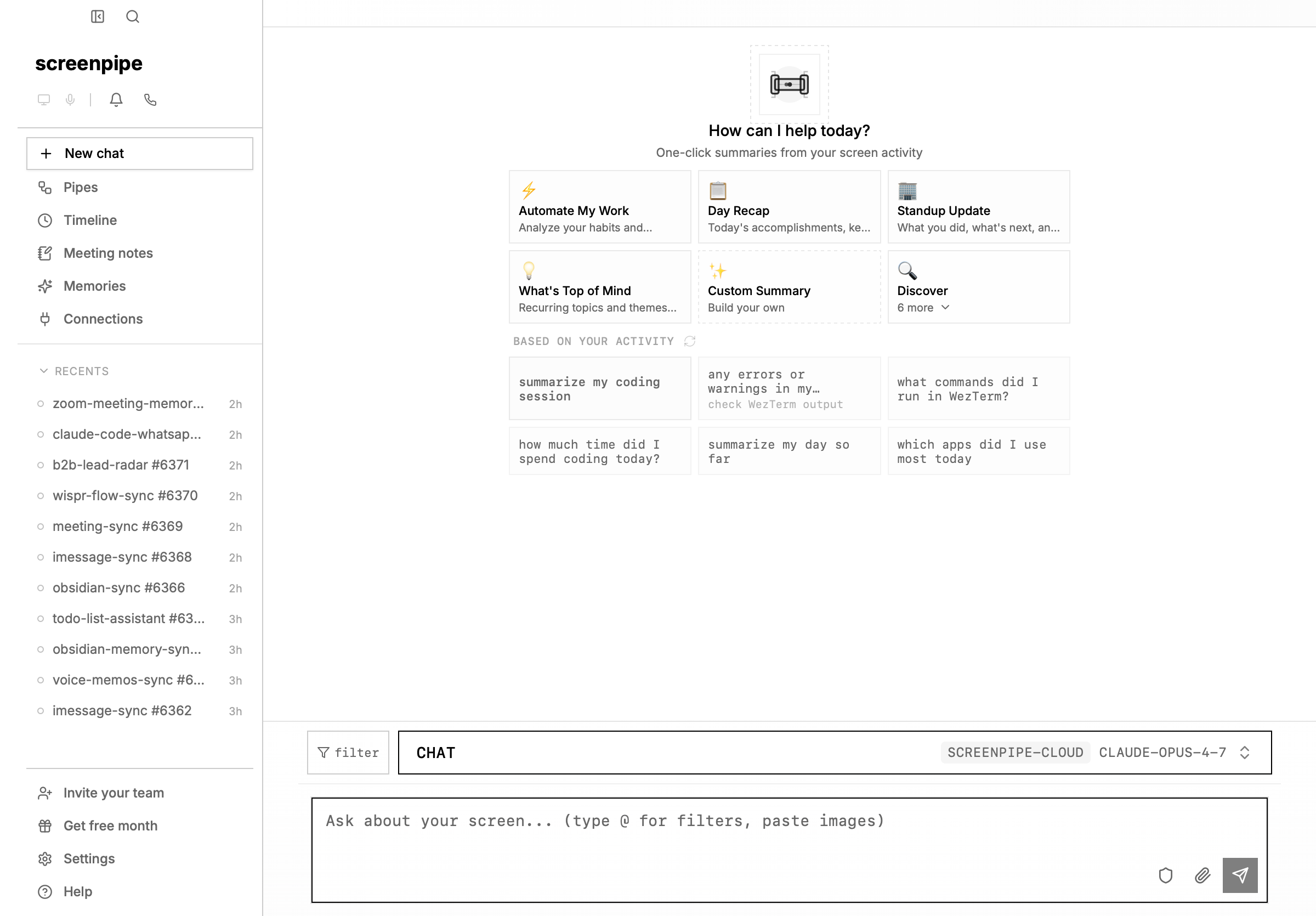 ## the 5-minute setup
[download the desktop app](https://screenpi.pe/onboarding) — works on macOS, Windows, and Linux.
open it, grant screen recording and microphone permissions when prompted, and screenpipe starts capturing automatically.
on macOS, you'll need to allow screen recording and accessibility access in System Settings → Privacy & Security.
browse some websites. write some code. check slack. screenpipe is now capturing everything — app text primarily via accessibility APIs, OCR fallback when needed, and audio via transcription.
you can verify it's working:
```bash theme={null}
curl http://localhost:3030/health
```
the local API needs no auth by default. if you've enabled API auth in settings, add `-H "Authorization: Bearer "` to any `localhost:3030` request.
pick your AI tool and connect screenpipe to it.
the fastest way is one command — it installs the screenpipe skills and registers the MCP server:
```bash theme={null}
npx -y screenpipe@latest agent setup
```
where `` is one of `openclaw`, `hermes`, `claude-code`, `claude-desktop`, `codex`, `cursor`, or `windsurf`. or wire it up manually:
**Claude Desktop (recommended)**
open screenpipe → go to **settings** (gear icon, bottom of sidebar) → **connections** (under Data & Privacy) → click **"install extension"** next to Claude. done.
**Claude Code**
```bash theme={null}
claude mcp add screenpipe --transport stdio --scope user -- npx -y screenpipe-mcp
```
**Codex**
open screenpipe → go to **settings** → **connections** → click **connect** next to Codex. then open a new Codex session.
**Cursor**
[click here to install in cursor](cursor://anysphere.cursor-deeplink/mcp/install?name=screenpipe\&config=eyJ0eXBlIjoic3RkaW8iLCJjb21tYW5kIjoibnB4IiwiYXJncyI6WyIteSIsInNjcmVlbnBpcGUtbWNwIl19)
**ChatGPT**
in the screenpipe chat (Home), click the model selector next to the input → select **ChatGPT** → sign in with your OpenAI account.
go to your AI tool and try:
* *"what was I working on in the last 5 minutes?"*
* *"summarize what I just read in the browser"*
* *"what apps have I been using?"*
that's it. your AI now has memory of your screen.
pipes are AI automations that run on a schedule. click **Pipes** in the sidebar to open the pipe store.
browse the catalog — try installing **Digital Clone** or **Day Recap**. click **GET** to install, then go to **settings → pipes** to enable and run it.
popular first pipes:
| pipe | what it does |
| ----------------------------- | --------------------------------------------- |
| **Digital Clone** | builds a persistent AI memory of who you are |
| **Obsidian Daily Summary** | writes daily summaries to your Obsidian vault |
| **Focus Assistant** | notifies you when you're distracted |
| **Daily Claude Code Summary** | summarizes your AI coding sessions |
| **Todo List Assistant** | tracks tasks and reminds you of what's due |
[browse all pipes →](/pipe-store)
## what you can do now
find code snippets, conversations, documents — anything that was on your screen
ready-made automations — CRM sync, meeting intelligence, time tracking, and more
add screenpipe to Codex, Cursor, Cline, Continue, Gemini CLI, and more
dozens of integrations — Slack, Notion, Google Calendar, Obsidian, Toggl, HubSpot, and more
## common first questions
**"what are pipes?"**
pipes are scheduled AI agents that run on your screen data. think of them as automations — a pipe can build your digital memory, track your time, sync notes to Obsidian, or anything you can describe in a prompt. browse them in the sidebar under **Pipes**. [learn more →](/pipes)
**"is my data private?"**
yes. everything is captured and stored locally by default. no data leaves your machine unless you explicitly choose a cloud provider, connected app, archive/sync flow, or remote AI workflow. see [privacy data flow](/privacy-data-flow).
**"can I use my own AI subscription?"**
yes. you can use your ChatGPT Plus, Claude Pro, or any API key. you can also use local models via Ollama for complete privacy. [learn more →](/chatgpt)
**"what does screenpipe capture?"**
screen text (primarily via accessibility APIs, with OCR fallback), audio transcriptions, app names, window titles, browser URLs, and user input events. you control what's captured in **settings → recording**.
**"how do I connect my apps?"**
go to **settings → connections** (under Data & Privacy). screenpipe supports dozens of integrations including Slack, Notion, Google Calendar, Google Docs, Obsidian, Toggl, HubSpot, Salesforce, PostHog, Sentry, Zoom, and more. [learn more →](/connections)
**"how do I know it worked?"**
open **Home**, ask a question in your AI tool, or run `curl http://localhost:3030/health`. after a few minutes of recording, `/search` and [API recipes](/api-recipes) should return real activity.
need help? [join our discord](https://discord.gg/screenpipe) — 10k+ members.
## the 5-minute setup
[download the desktop app](https://screenpi.pe/onboarding) — works on macOS, Windows, and Linux.
open it, grant screen recording and microphone permissions when prompted, and screenpipe starts capturing automatically.
on macOS, you'll need to allow screen recording and accessibility access in System Settings → Privacy & Security.
browse some websites. write some code. check slack. screenpipe is now capturing everything — app text primarily via accessibility APIs, OCR fallback when needed, and audio via transcription.
you can verify it's working:
```bash theme={null}
curl http://localhost:3030/health
```
the local API needs no auth by default. if you've enabled API auth in settings, add `-H "Authorization: Bearer "` to any `localhost:3030` request.
pick your AI tool and connect screenpipe to it.
the fastest way is one command — it installs the screenpipe skills and registers the MCP server:
```bash theme={null}
npx -y screenpipe@latest agent setup
```
where `` is one of `openclaw`, `hermes`, `claude-code`, `claude-desktop`, `codex`, `cursor`, or `windsurf`. or wire it up manually:
**Claude Desktop (recommended)**
open screenpipe → go to **settings** (gear icon, bottom of sidebar) → **connections** (under Data & Privacy) → click **"install extension"** next to Claude. done.
**Claude Code**
```bash theme={null}
claude mcp add screenpipe --transport stdio --scope user -- npx -y screenpipe-mcp
```
**Codex**
open screenpipe → go to **settings** → **connections** → click **connect** next to Codex. then open a new Codex session.
**Cursor**
[click here to install in cursor](cursor://anysphere.cursor-deeplink/mcp/install?name=screenpipe\&config=eyJ0eXBlIjoic3RkaW8iLCJjb21tYW5kIjoibnB4IiwiYXJncyI6WyIteSIsInNjcmVlbnBpcGUtbWNwIl19)
**ChatGPT**
in the screenpipe chat (Home), click the model selector next to the input → select **ChatGPT** → sign in with your OpenAI account.
go to your AI tool and try:
* *"what was I working on in the last 5 minutes?"*
* *"summarize what I just read in the browser"*
* *"what apps have I been using?"*
that's it. your AI now has memory of your screen.
pipes are AI automations that run on a schedule. click **Pipes** in the sidebar to open the pipe store.
browse the catalog — try installing **Digital Clone** or **Day Recap**. click **GET** to install, then go to **settings → pipes** to enable and run it.
popular first pipes:
| pipe | what it does |
| ----------------------------- | --------------------------------------------- |
| **Digital Clone** | builds a persistent AI memory of who you are |
| **Obsidian Daily Summary** | writes daily summaries to your Obsidian vault |
| **Focus Assistant** | notifies you when you're distracted |
| **Daily Claude Code Summary** | summarizes your AI coding sessions |
| **Todo List Assistant** | tracks tasks and reminds you of what's due |
[browse all pipes →](/pipe-store)
## what you can do now
find code snippets, conversations, documents — anything that was on your screen
ready-made automations — CRM sync, meeting intelligence, time tracking, and more
add screenpipe to Codex, Cursor, Cline, Continue, Gemini CLI, and more
dozens of integrations — Slack, Notion, Google Calendar, Obsidian, Toggl, HubSpot, and more
## common first questions
**"what are pipes?"**
pipes are scheduled AI agents that run on your screen data. think of them as automations — a pipe can build your digital memory, track your time, sync notes to Obsidian, or anything you can describe in a prompt. browse them in the sidebar under **Pipes**. [learn more →](/pipes)
**"is my data private?"**
yes. everything is captured and stored locally by default. no data leaves your machine unless you explicitly choose a cloud provider, connected app, archive/sync flow, or remote AI workflow. see [privacy data flow](/privacy-data-flow).
**"can I use my own AI subscription?"**
yes. you can use your ChatGPT Plus, Claude Pro, or any API key. you can also use local models via Ollama for complete privacy. [learn more →](/chatgpt)
**"what does screenpipe capture?"**
screen text (primarily via accessibility APIs, with OCR fallback), audio transcriptions, app names, window titles, browser URLs, and user input events. you control what's captured in **settings → recording**.
**"how do I connect my apps?"**
go to **settings → connections** (under Data & Privacy). screenpipe supports dozens of integrations including Slack, Notion, Google Calendar, Google Docs, Obsidian, Toggl, HubSpot, Salesforce, PostHog, Sentry, Zoom, and more. [learn more →](/connections)
**"how do I know it worked?"**
open **Home**, ask a question in your AI tool, or run `curl http://localhost:3030/health`. after a few minutes of recording, `/search` and [API recipes](/api-recipes) should return real activity.
need help? [join our discord](https://discord.gg/screenpipe) — 10k+ members.